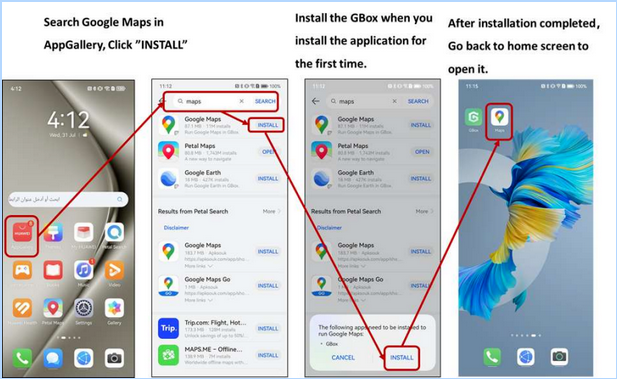
Google Maps is popular for everyday commuting, long-distance travel, or exploring new places. However, modern Huawei devices no longer come with Google Mobile Services, so some may wonder: does google maps work on huawei? The good news is that Google Maps can run smoothly with the right setup, and with a few clever tricks, you can optimize the experience even further. Below are seven practical tips to help you use Google Maps efficiently on your Huawei device.
7 Tips and Tricks to Improve Your Google Maps Experience on Huawei
These easy strategies can help you navigate faster, save time, and maximize the app’s performance on your Huawei phone or tablet.
Install Google Maps Through AppGallery With MicroG for Best Stability
If your device supports it, installing Google Maps directly from AppGallery ensures the most stable performance. When prompted, allow MicroG to install as well—it provides the necessary framework for Google Maps to run smoothly. Once set up, you’ll have access to navigation, saved places, and real-time updates just like a standard Android device.
Download Offline Maps Before Traveling or Entering Low-Signal Areas
Offline maps are essential for rural routes, underground areas, or international trips where mobile data may be limited. To download offline areas, go to Profile → Offline Maps → Select Your Own Map. Google Maps will continue working even without a network connection, helping you stay oriented anywhere you go. Offline navigation also loads faster and consumes less battery.
Turn On High-Accuracy GPS Mode for Precise Location Tracking
For smoother and more precise navigation, enable High Accuracy Mode in your device’s location settings. This tells your Huawei phone to use GPS, Wi-Fi, and Bluetooth scanning together. It significantly improves route accuracy, especially in busy streets, forests, or mountainous areas where GPS signals fluctuate.
Adjust Battery Settings to Prevent Navigation Interruptions
Huawei devices use aggressive battery-saving modes that might restrict Google Maps from running in the background. Go to Settings → Battery → App Launch and switch Google Maps to “Manage Manually.” Enable all toggles—background running, secondary launch, and background activity, so navigation stays active during long drives or multitasking.
Use the Compass Tool for Real-World Orientation
When hiking, cycling, or walking in unfamiliar places, tapping the blue dot and activating the compass helps align the map with your actual direction. This makes it easier to follow paths and reduces confusion when the route twists. Recalibrate the compass if the map rotates incorrectly – the app will guide you through quick calibration steps.
Organize Your Places With Lists for Faster Access
Google Maps allows you to save your favorite places such as restaurants, hotels, trails, or work locations. Organizing them into lists, like “Travel,” “Work,” or “Places to Try”, makes them easy to access anywhere. This is especially helpful during trips or when planning itineraries. Your lists sync across devices when MicroG is enabled.
Switch Between Map Views for Better Environmental Awareness
Different map views can help you navigate more confidently.
l Satellite View shows real buildings and landscapes.
l Terrain View highlights elevation changes—useful for outdoor trips.
l Traffic View provides real-time congestion data.
Switching views gives you better situational awareness, whether you’re walking through a new neighborhood or navigating busy roads.
Conclusion
So, Google Maps can work efficiently on Huawei devices when installed correctly and optimized with the right settings. By enabling high-accuracy GPS, adjusting battery permissions, downloading offline maps, and organizing your saved places, you can enjoy smooth and reliable navigation anywhere. These seven tricks help enhance your experience, making Google Maps a powerful tool for travel, commuting, and everyday exploration, even without Google Play Services.